Securing My Verizon MiFi: Small Fixes, Big Difference

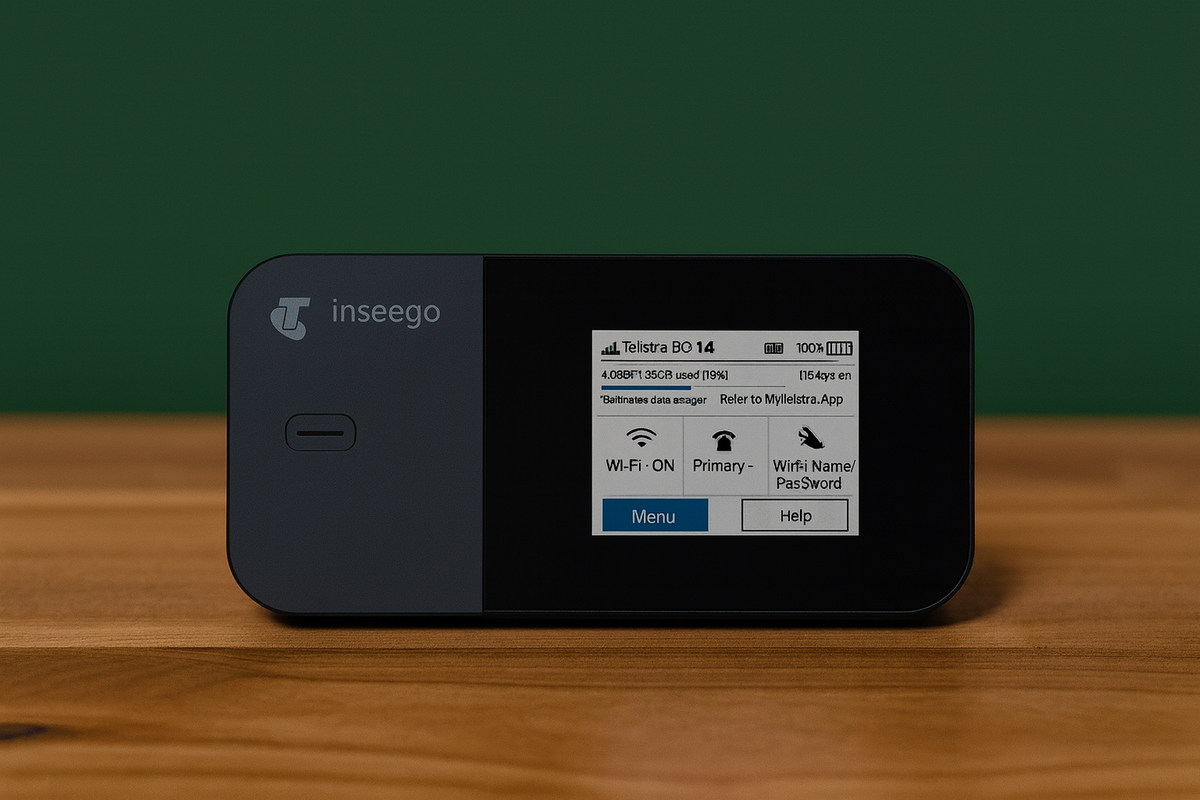
I wanted to start my IT journey with something simple and hands-on, tightening up the security on my Verizon MiFi. It’s a small device, but it acts as the main gateway between my home network and the internet.
What I found is that even the smallest hardware can benefit from a few smart changes.
The Steps I Took
1. Changed the default admin password
I logged into the MiFi admin dashboard (usually 192.168.1.1, or whatever’s printed on the device) and replaced the default “admin” password with a strong, unique one. It’s the simplest defense, and it stops anyone nearby from taking control of your settings.
2. Renamed the network (SSID)
I changed the default Wi-Fi name so it doesn’t reveal the model or carrier. It’s a small detail, but it makes your network less of a target to anyone scanning nearby.
3. Enabled stronger encryption
I switched the security mode from WPA2 to WPA3. If your device supports it, it’s worth enabling, WPA3 adds tougher encryption and makes brute-force attacks much harder.
4. Disabled WPS
Wi-Fi Protected Setup sounds convenient, but it’s an old feature with vulnerabilities. Disabling it closes a door you’ll never miss.
5. Updated the firmware
I checked for and installed the latest firmware update through the admin panel. Updates often patch hidden security issues, so it’s worth making this a routine.
6. Reviewed connected devices
The admin dashboard shows every device currently on your network. I used it to confirm that only my own devices were connected, and removed a few I no longer use.

What I Learned
Even something as small as a MiFi deserves attention. It’s easy to overlook, but if someone gains access, they gain a direct line into everything else connected to it.
Making these adjustments only took a few minutes, but the payoff is peace of mind, and a better understanding of how network security actually works.
Final Thoughts
Projects like this might seem basic, but that’s the point. They’re real, practical, and you can do them today. If you’re starting out in IT, start where you are, with the devices you already use.
If you’d like to follow along as I document small, useful IT projects like this, subscribe below to get future posts delivered straight to your inbox.